Introducing Multi-User Teams for Coaching Staffs
Invite your assistant coaches, share sessions and drills, and manage your entire staff from one workspace with team collaboration.
 Planner.coach Team
What's New
Planner.coach now supports multi-user teams, letting you invite your coaching staff into a shared workspace. Create a team, assign roles, and collaborate on sessions, drills, and athlete data — all from one place.
Whether you run a club with multiple age-group coaches or a school program with assistants who help run practice, teams keep everyone on the same page without duplicating work.
Why It Matters
Coaching is rarely a solo effort. You have assistant coaches running stations, specialists working with position groups, and support staff tracking athlete progress. Until now, each coach had their own isolated workspace — meaning shared drills lived in group chats and session plans got copy-pasted between accounts.
With teams, your entire staff works from the same library of sessions, drills, and athlete profiles. When one coach updates a drill diagram, everyone sees it. When an athlete's measurements are recorded, the whole staff has access.
How to Use It
Create a Team
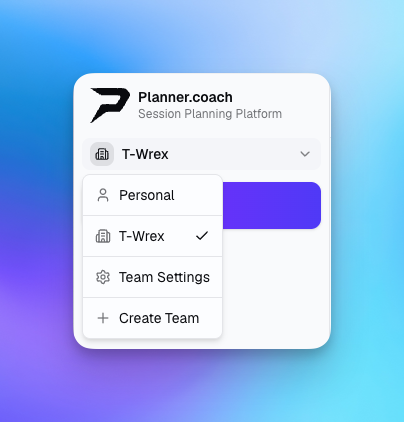
Navigate to Team Settings from the sidebar. Give your team a name, select your sport, and you're ready to invite members. Teams are available on the Club plan.
Invite Your Staff
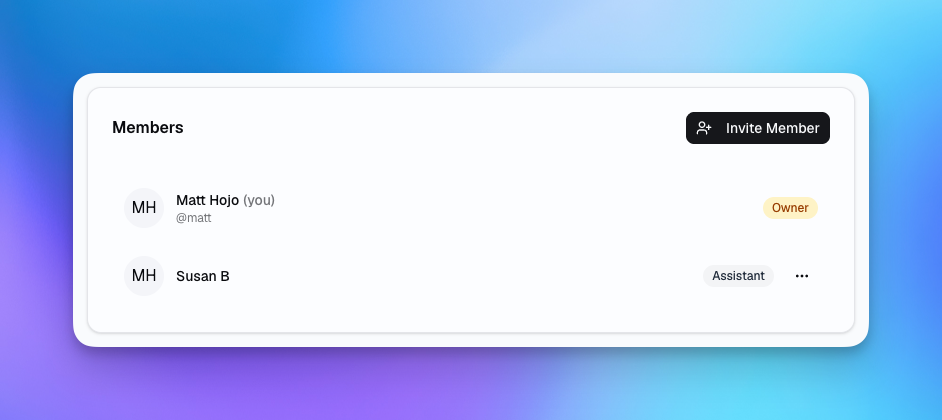
Send email invitations directly from the team settings page. Each invite includes a role assignment so new members get the right level of access from day one. Invitees who don't have an account yet will be guided through signup and automatically added to your team.
Assign Roles
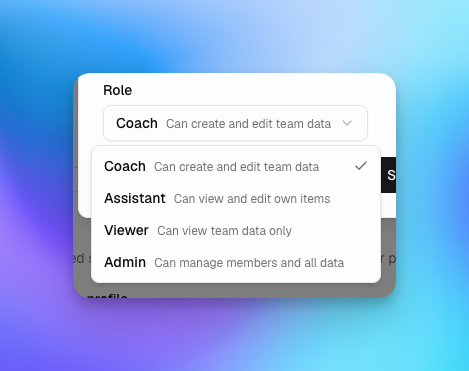
Teams support five roles, each with a clear level of access:
- Owner — Full control including billing and team management
- Admin — Manage members and all team data
- Coach — Create, edit, and delete team content
- Assistant — View everything, edit only their own items
- Viewer — Read-only access to all team data
Switch Between Personal and Team
The team switcher in the sidebar lets you move between your personal workspace and any team you belong to. Your personal content stays private — only data created within the team context is shared.
AI Credits
When working in a team context, AI coaching assistant credits are drawn from the team owner's pool.
What's Next
We're working on team activity logs, finer-grained sharing controls, and the ability to share individual sessions or drills from your personal workspace into a team. If you have feedback on how teams can better fit your coaching setup, let us know through the in-app coach chat.
Get started for free and bring your coaching staff together.
See It in Action
Sign up for free and start using the latest features today. No credit card required.
More from the blog
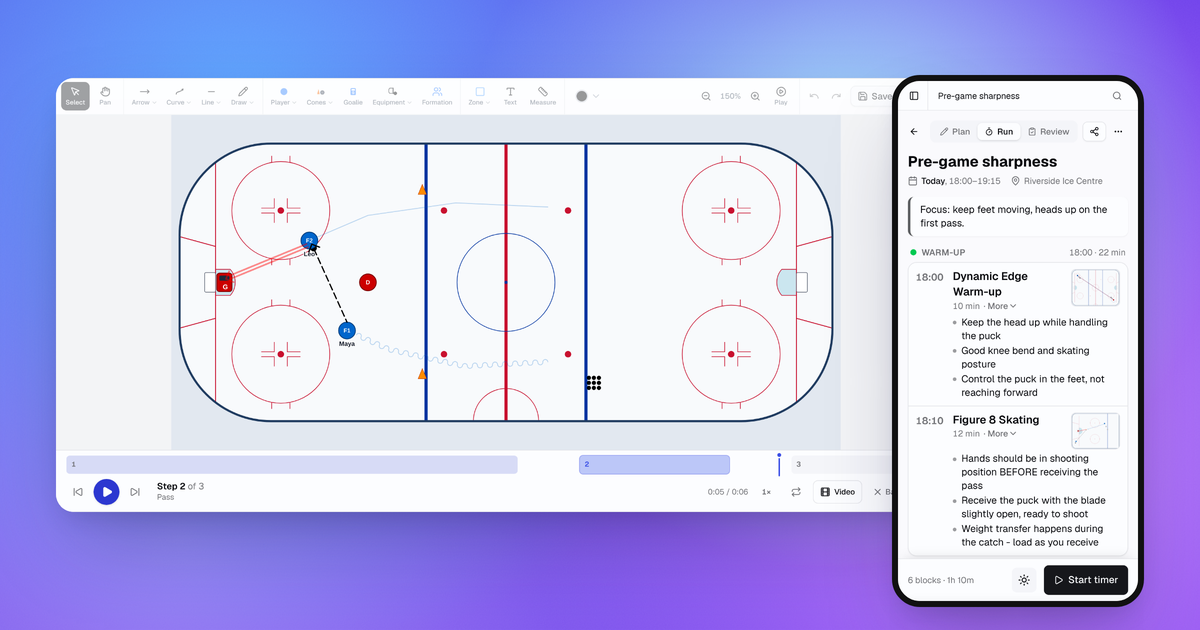
October Update: Drill Playback, Run Mode and Game Day
Drills now play step by step, sessions have a Run mode for your phone, and games, squad import and the AI Coach all got better.
Connect Claude or ChatGPT to Your Coaching Data with the MCP Connector
Planner.coach now supports the Model Context Protocol. Connect Claude, ChatGPT, or Copilot to your sessions, athletes, and calendar — on every plan.
Consent Workflows for Athletes and Guardians
Send onboarding packs to athletes or their guardians, track completion in real time, and start the season with every form signed — no chasing required.