Connect Claude or ChatGPT to Your Coaching Data with the MCP Connector
Planner.coach now supports the Model Context Protocol. Connect Claude, ChatGPT, or Copilot to your sessions, athletes, and calendar — on every plan.
 Planner.coach Team
What's New
Planner.coach now supports AI Integrations via the Model Context Protocol (MCP). Add your personal connector URL to any MCP-compatible AI assistant — Claude, ChatGPT, GitHub Copilot — and that assistant can query your sessions, athletes, training load, and calendar events directly.
No exports, no copy-pasting, no uploading CSV files. Your AI assistant reads your live coaching data and responds to your questions in context.
This is available on every plan — Free, Pro, and Club — at no extra cost. Find your connector URL at /integrations.
Why It Matters
Most coaches already use an AI assistant for something — writing session notes, answering a tactical question, sketching out a training block. The problem is that assistant has no idea who you coach, what you ran last week, or where you are in the season. Every conversation starts from zero.
The MCP connector closes that gap. Your AI assistant can now answer questions that actually require your data:
- "Which athletes have the lowest minutes in the last three weeks?"
- "Build me a four-week pre-season block based on my upcoming calendar events."
- "Summarise what we worked on in our last five sessions."
- "Which of my athletes haven't had a session logged since the international break?"
These are questions that take real time to answer manually. With the connector in place, a well-prompted Claude or ChatGPT conversation can pull the answer in seconds from your actual records.
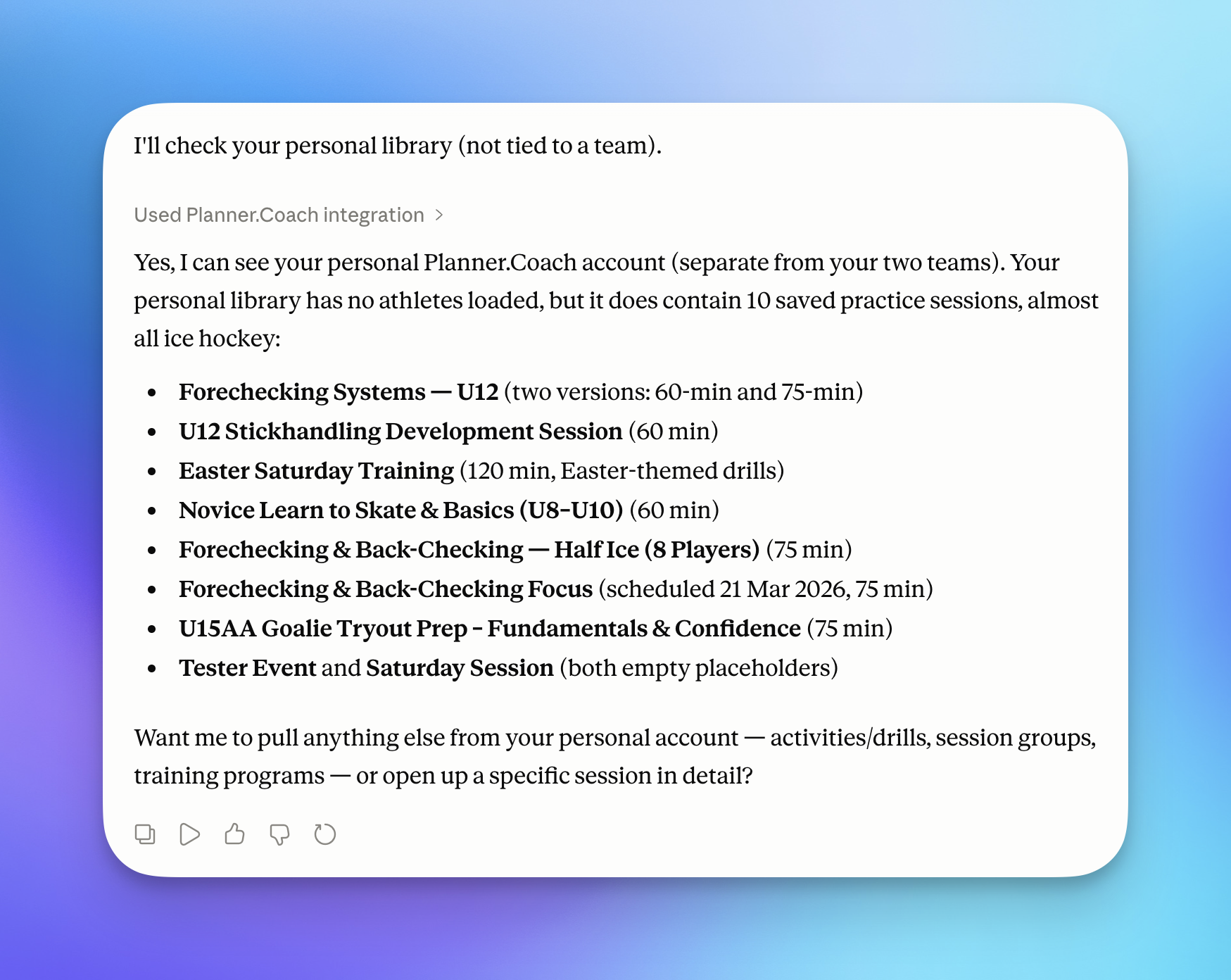
How to Use It
Setup is a single step: copy your connector URL from the /integrations page and add it to your AI assistant's MCP settings.
For Claude (claude.ai): Go to Settings → Integrations → Add MCP Server and paste the URL.
For ChatGPT: Add it as a custom connector in the GPT settings panel.
For Microsoft Copilot: Add the URL to your MCP server list settings.
Once connected, the assistant can access your coaching data in any conversation. You do not need to be logged in to Planner.coach while using it — the connector handles authentication.
Designed With Safety in Mind
The connector is read-heavy by design. Here is exactly what it can and cannot do:
What your AI assistant can read:
- Session titles, plans, notes, and dates
- Athlete names, positions, and training load history
- Calendar events and season phases
- Roster and lineup summaries
What is always blocked:
- Athlete date of birth, contact details, and medical notes — stripped at the source before any data leaves the platform
- Athlete drill creation and session builder edits via the connector
- Email sending
Write operations require your approval:
- The connector can propose calendar events or session drafts, but any write to your account must be explicitly approved inside the AI assistant interface before it takes effect. No silent mutations.
This mirrors the same PII rules that apply everywhere in Planner.coach — names and aggregates only, never personal or medical detail.
[SCREENSHOT: The integrations page privacy section listing what data is accessible, what is redacted, and which operations require explicit approval]
Available on Every Plan
The MCP connector is included on Free, Pro, and Club — there is no paywall and no separate add-on to purchase. If you have a Planner.coach account, you have a connector URL waiting at /integrations.
Club teams: each team member gets their own connector URL scoped to the team's data. Credits for any AI-assisted write operations still come from the team owner's pool.
Get Started
Head to /integrations to copy your connector URL and follow the setup guide for your AI assistant of choice. The whole process takes under two minutes.
If you do not have an account yet, sign up for free — the connector is ready to use from day one.
See It in Action
Sign up for free and start using the latest features today. No credit card required.
More from the blog
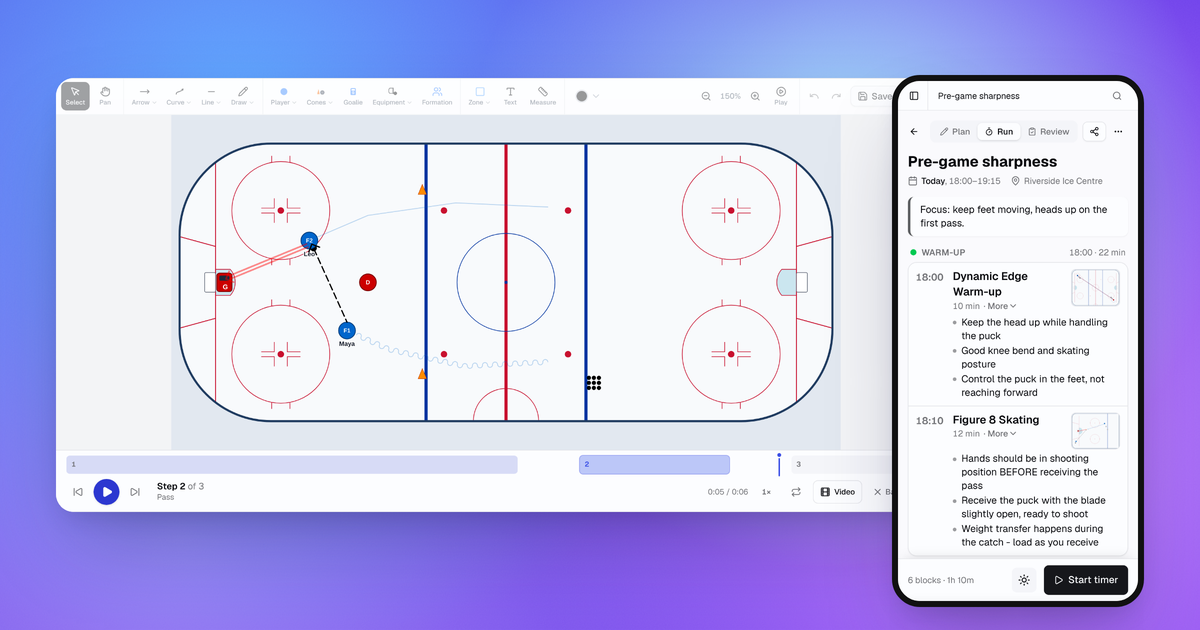
October Update: Drill Playback, Run Mode and Game Day
Drills now play step by step, sessions have a Run mode for your phone, and games, squad import and the AI Coach all got better.
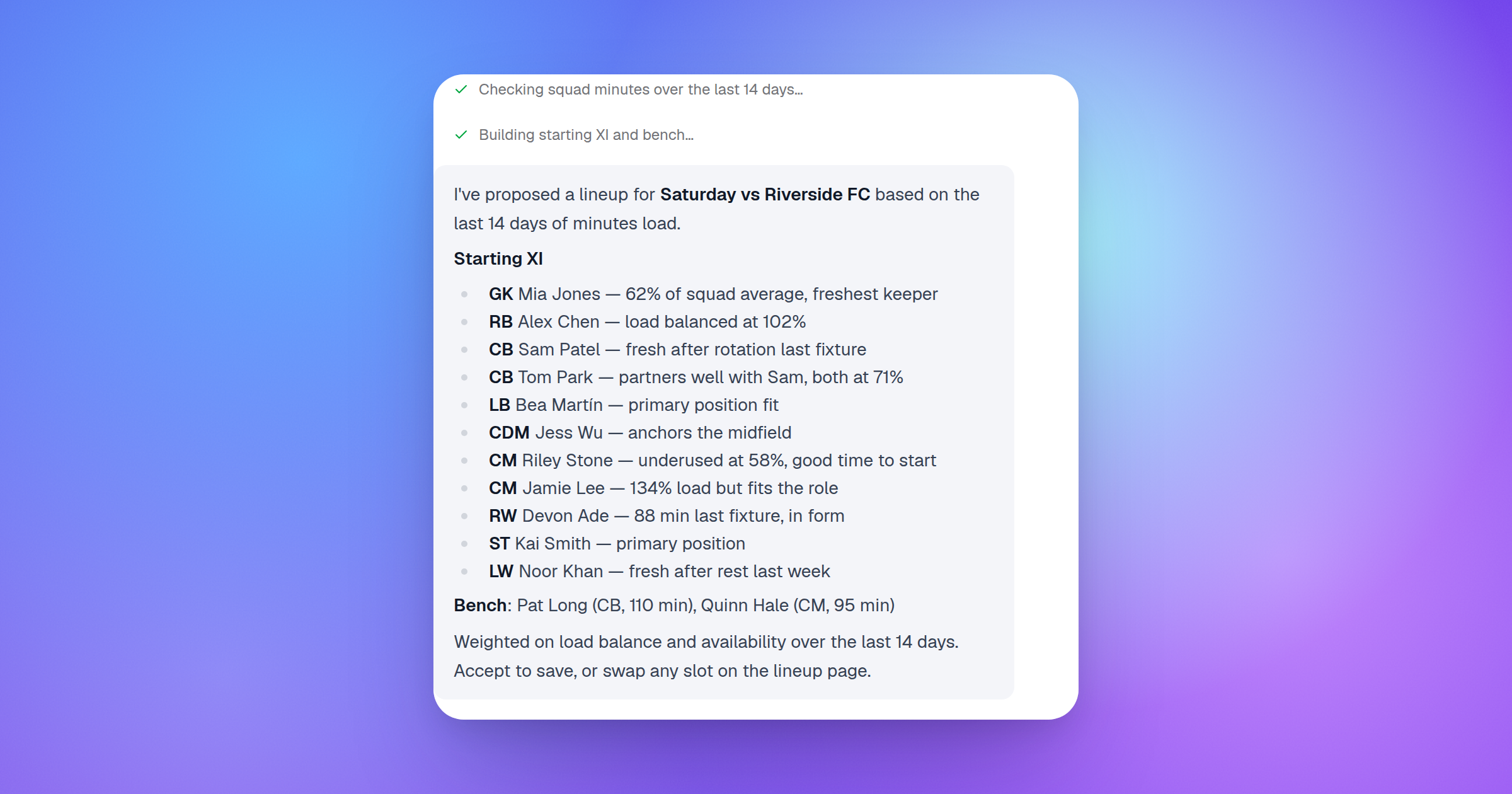
Introducing AI-Powered Lineup Builder: Smarter Match-Day Planning
Build your starting lineup, manage ice time, and let AI propose balanced formations for soccer and hockey — in minutes, not hours.
How to Plan Practice Sessions with AI: A Coach's Guide
A practical guide to using AI to plan sessions, design drills, and track athlete progress — without the admin hours that usually come with it.