October Update: Drill Playback, Run Mode and Game Day
Drills now play step by step, sessions have a Run mode for your phone, and games, squad import and the AI Coach all got better.
 Planner.coach Team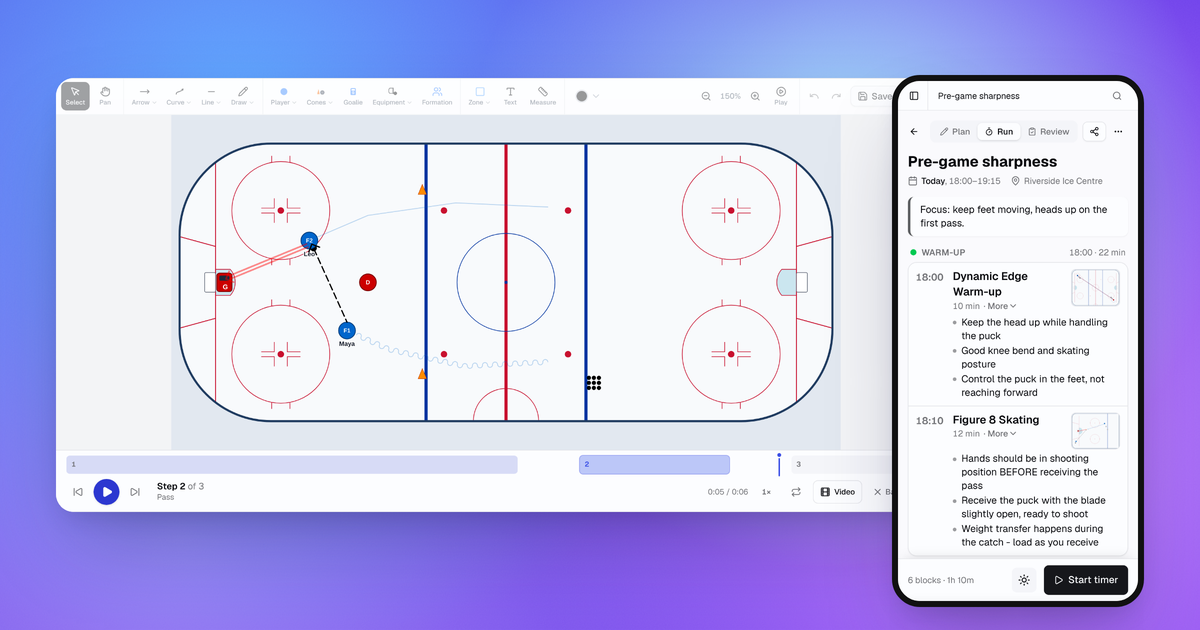
We shipped a lot over the last two days. Drills now play out step by step, every session has a Run mode for the sideline, and games have a page of their own. The AI Coach can also turn a photo of a whiteboard sketch into a drill.
A few things have moved too, so there's a short guide to the new layout near the end.
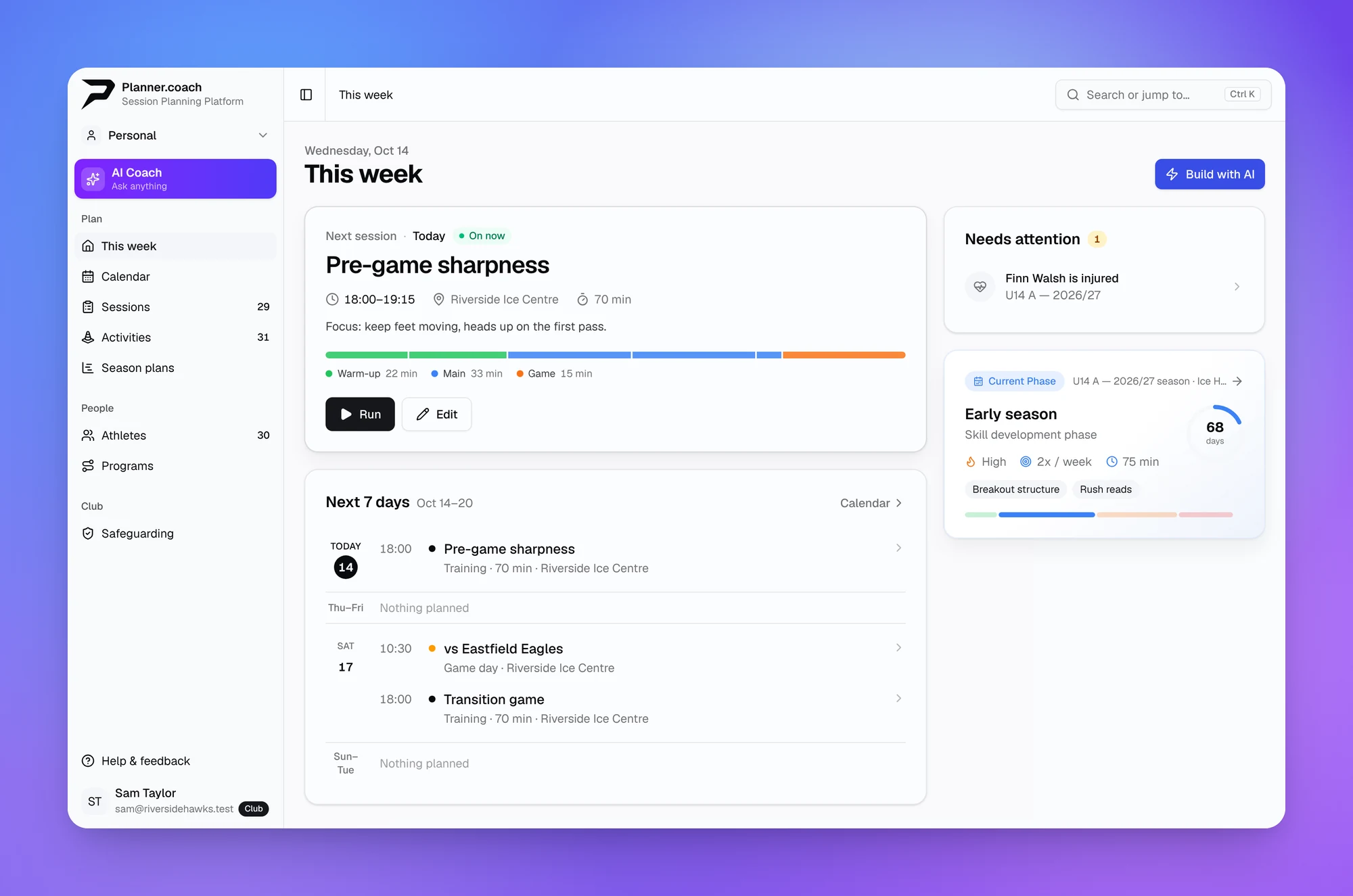
Your week on one page
The home page is now called This week. It opens with your next session and its Run and Edit buttons, then lists the next seven days. On the right, Needs attention collects anything waiting on you: unanswered RSVPs, consent forms still pending, injured players and risk assessments due for review. If you have a season plan, the current phase sits underneath.
Run training from your phone
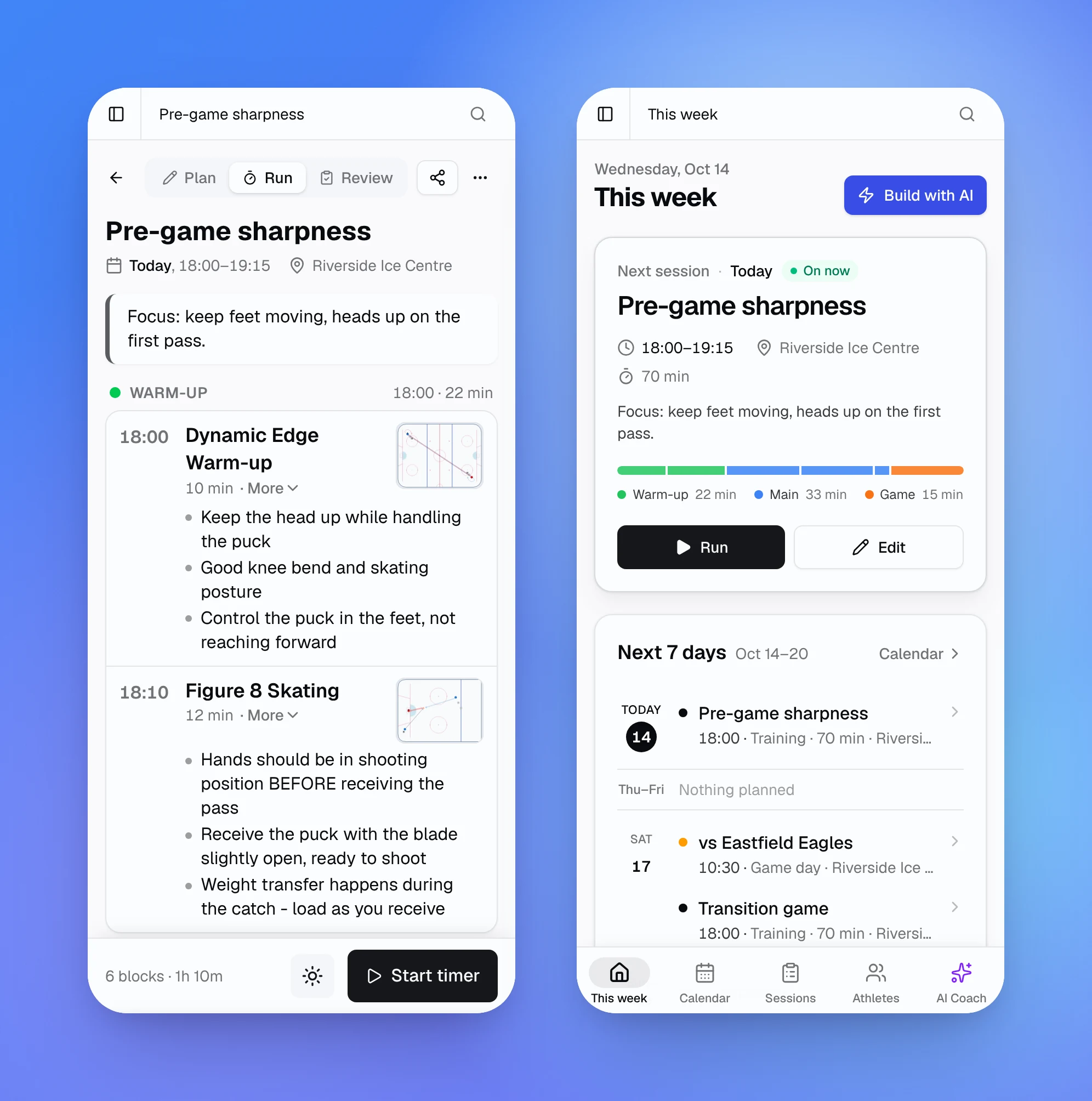
Every session in the session builder now has three modes. Plan is where you build it. Run turns it into a sheet for the sideline, with each block at its start time, the drill picture and your coaching points, and a timer you start from the bottom of the screen. Review is where you take attendance, write notes and rate the session.
On training day a session opens in Run. Once it's over, it opens in Review.
On a phone, a new tab bar along the bottom gets you to This week, Calendar, Sessions, Athletes and AI Coach in one tap.
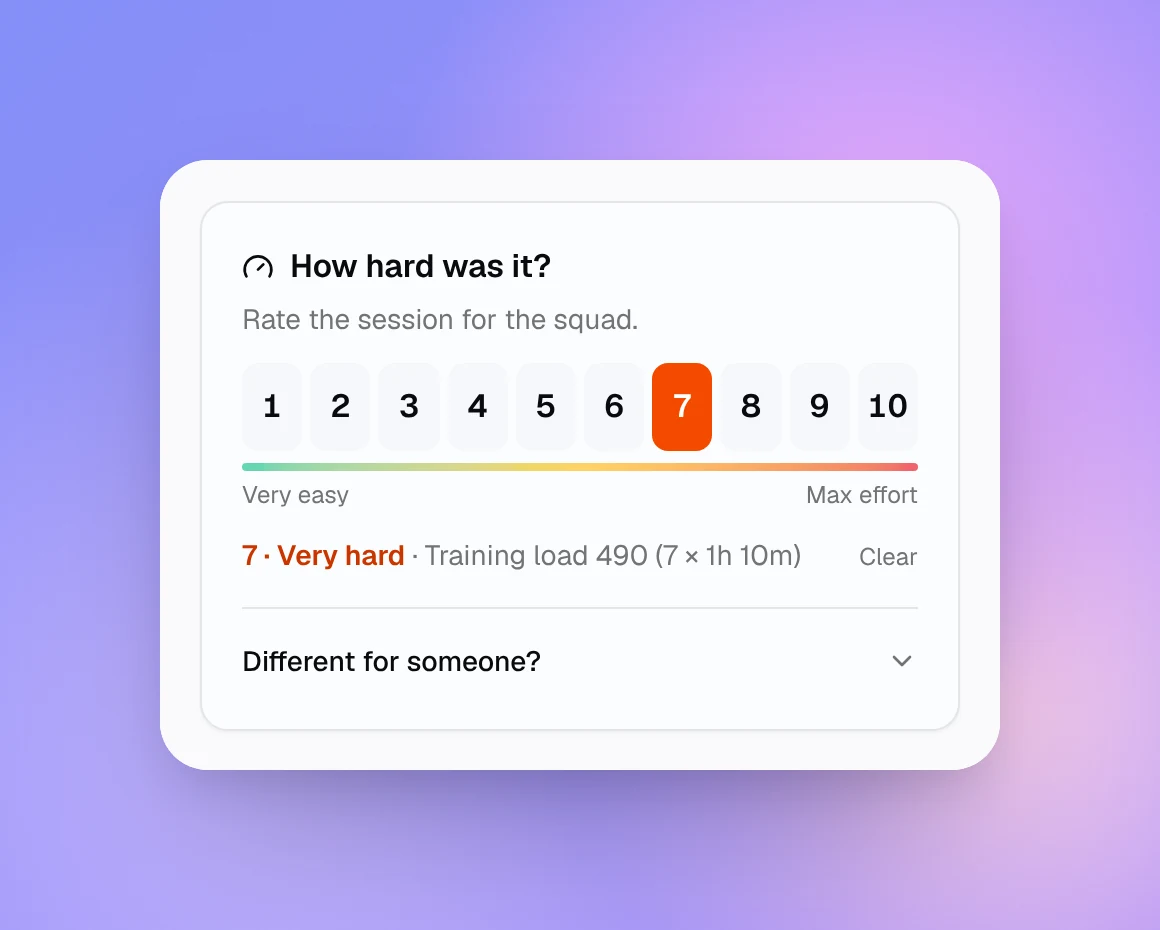
Review now asks how hard the session was. Tap a number from 1 to 10 and Planner.coach works out the training load, which is the rating multiplied by the session's length. If one player had a harder or easier day, you can give them their own rating. Run, Review and session ratings are on every plan.
Drills that play step by step
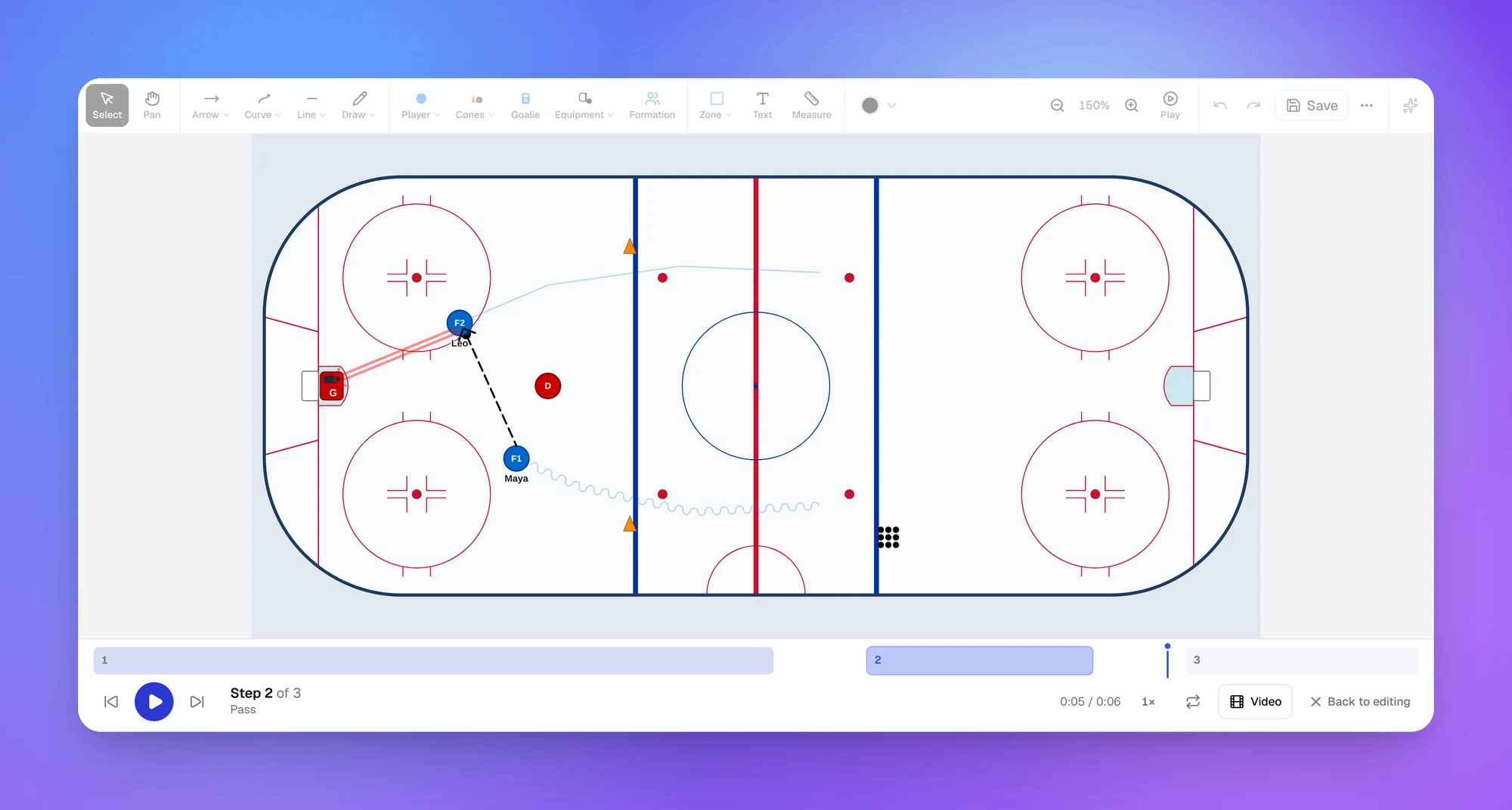
Press Play in the drill designer and each line runs in order. Players move along the runs attached to them, the puck or ball follows the pass, and a strip along the bottom shows which step you're on. You can step through it one line at a time or slow it to half speed. Drill links you share play too, so your squad can watch before training.
To set the order yourself, select a line and give it a step number. Lines with the same number move together. Drills you drew before this update play one line at a time, in the order you drew them.
On Pro and Club, the Video button saves the playback as a video you can send to players.
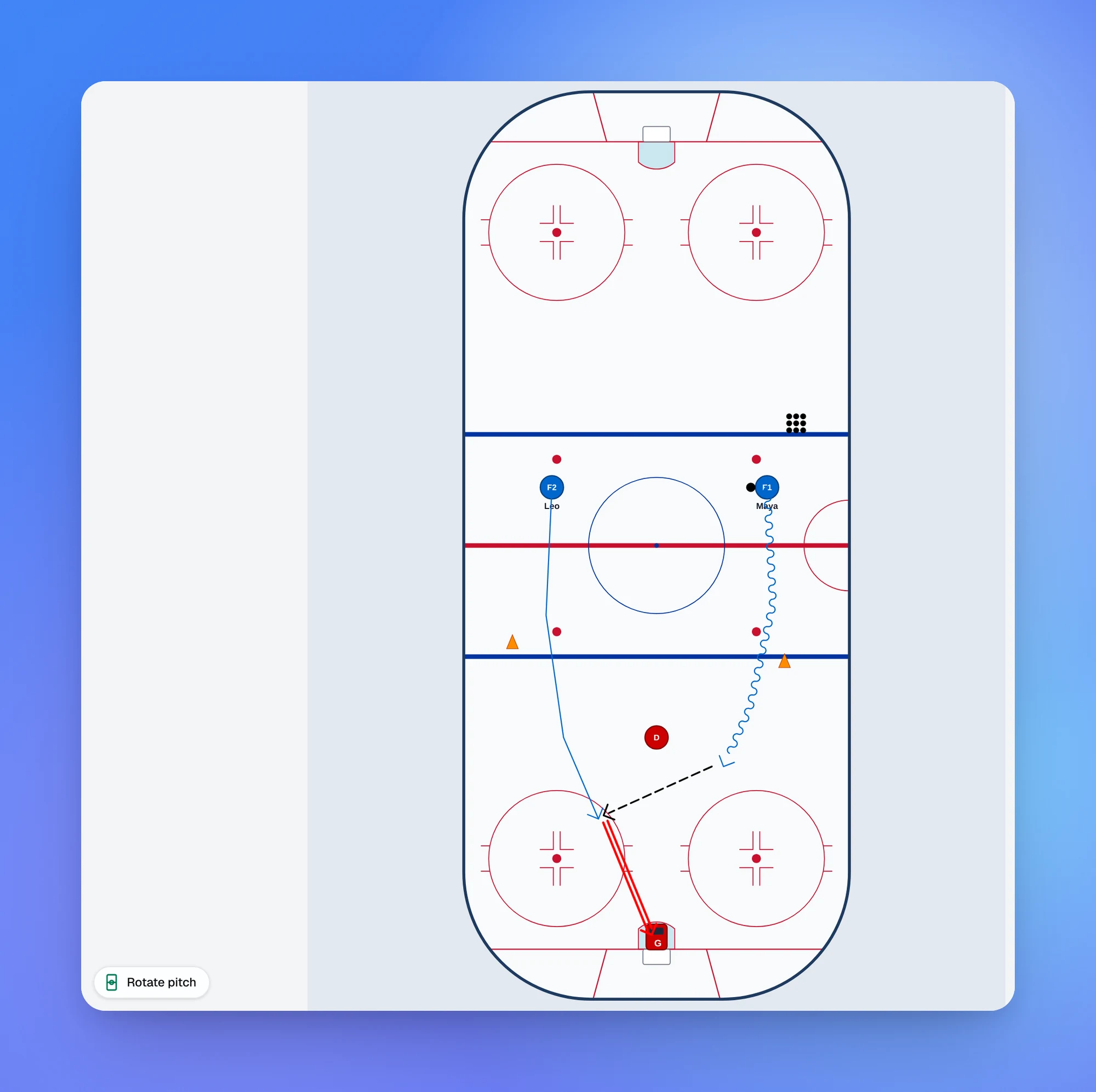
Turn any drill tall
Rotate pitch, at the bottom left of the editor, turns the surface a quarter turn so the drill fills a phone screen or an A4 page. Your players and lines turn with it, and the drill stays tall in session plans, PDFs and shared links. Ask the AI Coach for a portrait drill and it'll draw one that way.
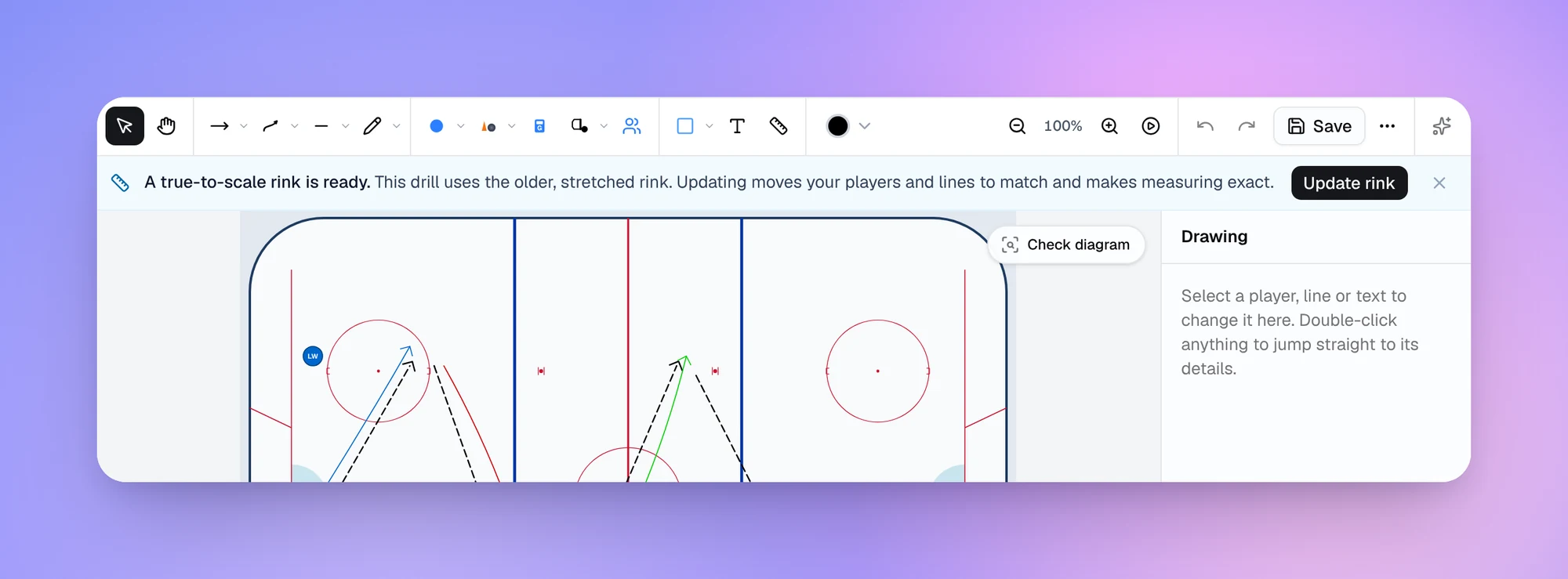
Courts, pitches and rinks drawn to scale
Most surfaces are now drawn in their true proportions, so the measure tool gives you accurate distances. There are 15 new ones:
- Basketball: FIBA and NBA half courts, and a full FIBA court
- Soccer: a half pitch, the final third and the penalty box
- Ice hockey: NHL and IIHF zones, plus IIHF full and half rinks
- Volleyball: a half court
New drills use the true-scale surfaces straight away. Older drills show a one-click update, and you can choose Not now if you'd rather keep the old drawing.
Faster drawing tools
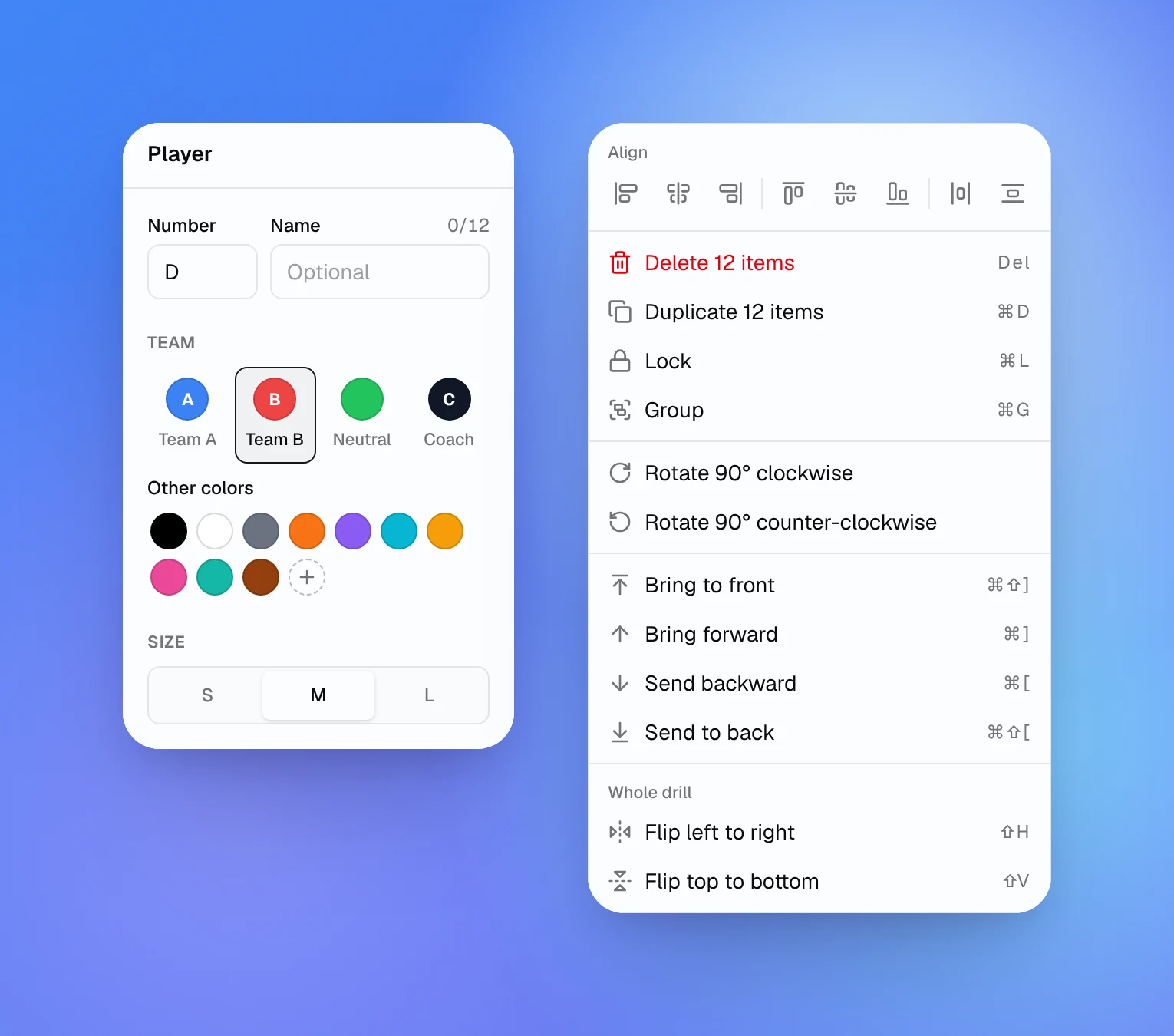
Select a player and the panel on the right shows its number, name, team and size. Team A and Team B swatches keep both sides the same colour across your drills, and in basketball and American football they read Offense and Defense. You can also show players as X and O.
Right-click (or long-press on a touchscreen) to open the new arrange menu. From there you can align players, space them evenly, group them, lock them in place or flip the whole drill. Drag the middle of a line to bend it, and drag its start onto a player so the run moves with them. Formation adds a whole team shape in one go.
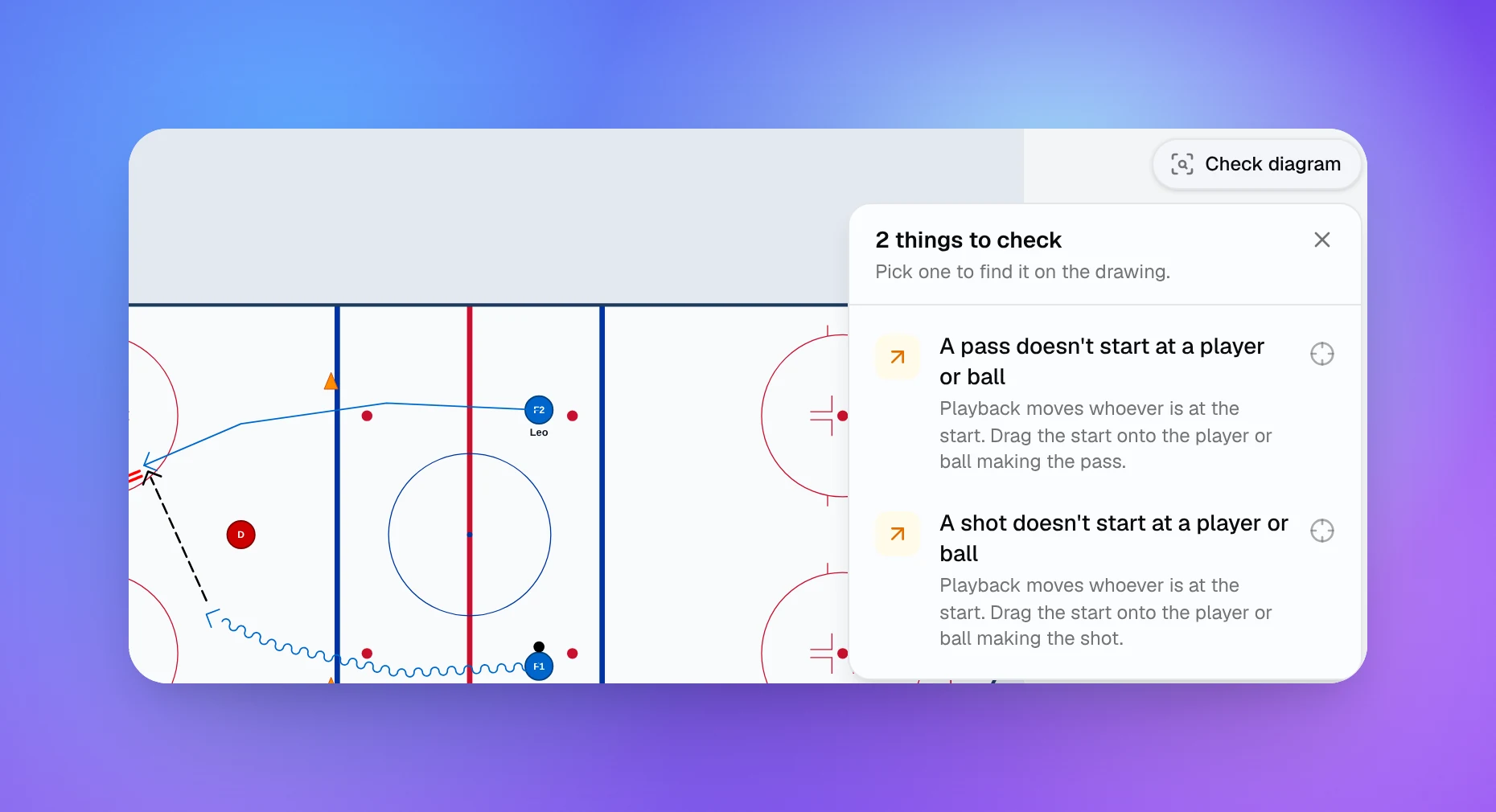
When you've finished, Check diagram runs the same layout checks the AI Coach uses on its own drawings. It lists anything that looks off, such as a pass that doesn't start at a player, and zooms to each one when you pick it. It's on every plan and doesn't use credits.
Autosave and version history
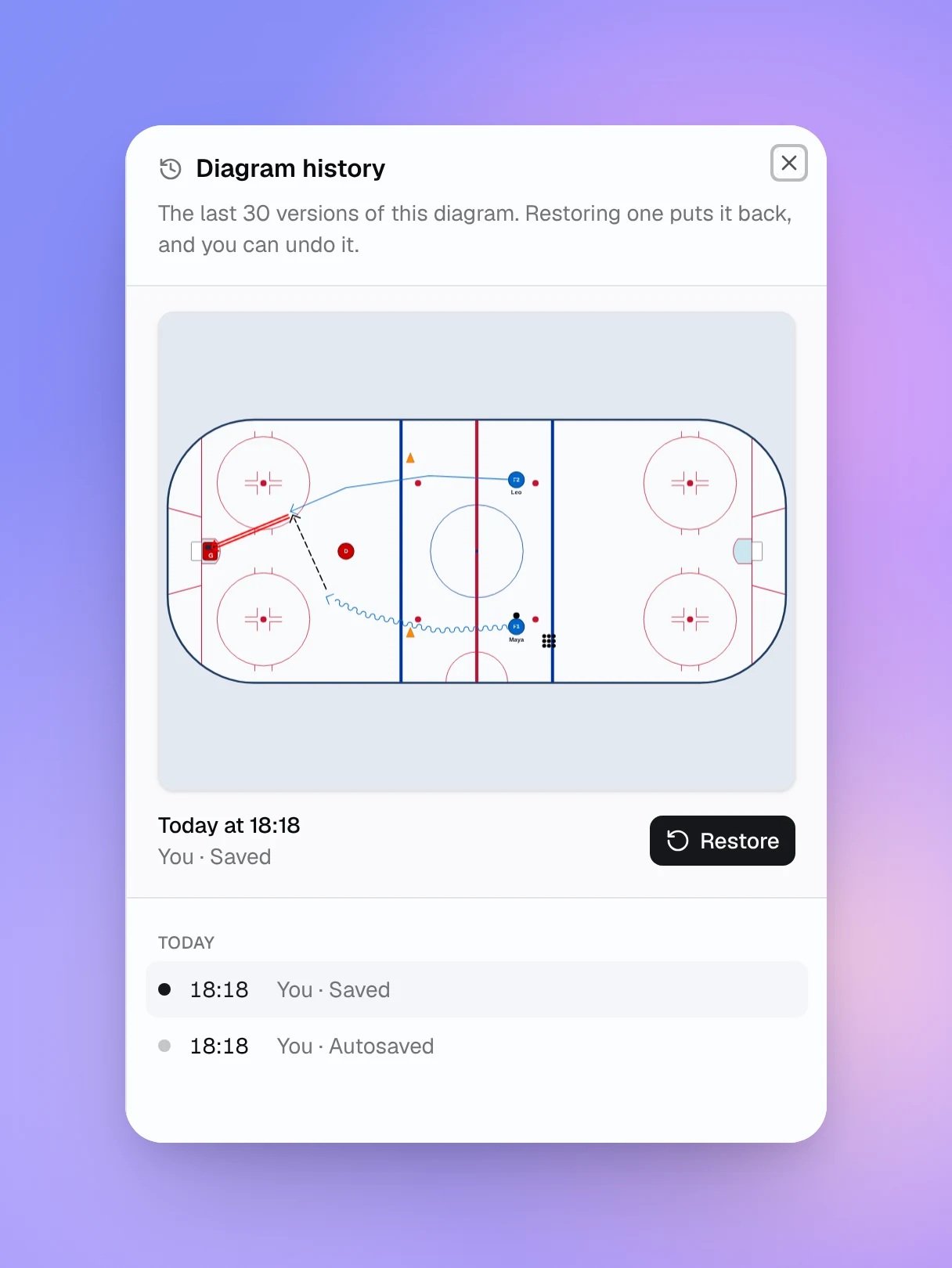
The editor now saves a couple of seconds after each change. If a teammate saves the same drill while you're working on it, you choose which version to keep. If a save fails, your changes stay on your device until you put them back.
On Pro and Club, History keeps the last 30 versions of each diagram. Restoring one puts it back, and you can undo that as well.
Kit lists, downloads and sharper PDFs
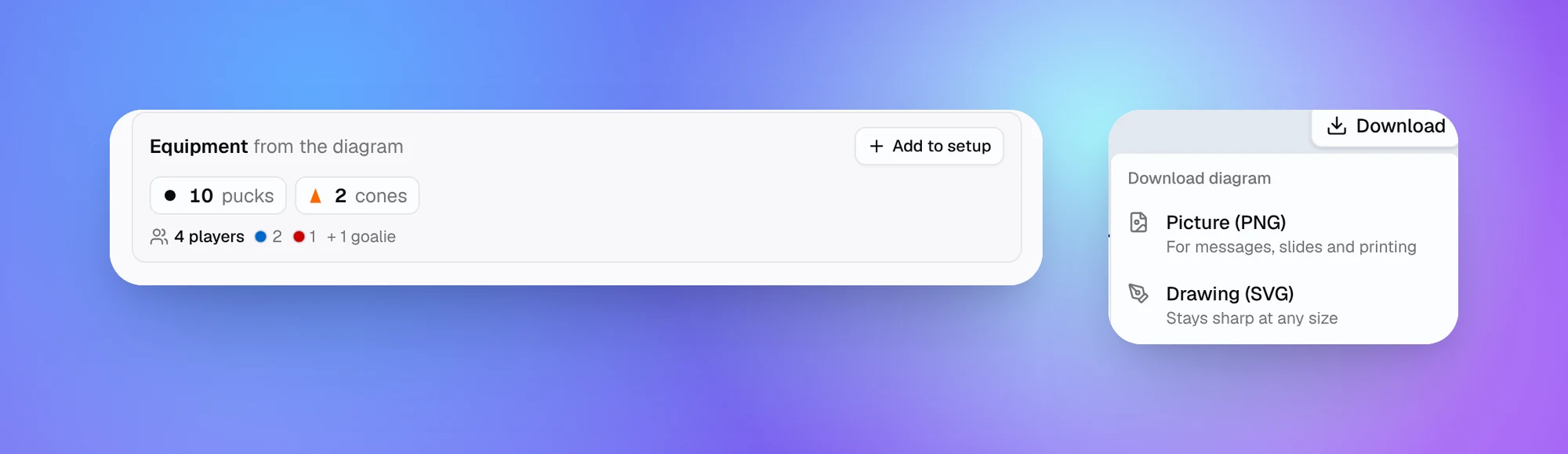
Every drill page now counts the equipment and players in its diagram, and Add to setup puts that kit on the drill's equipment list. The session page adds it up across all your drills, so you know what to bring.
You can download any drill as a PNG picture or an SVG drawing. Diagrams in PDFs now print about four times sharper, and a drill link shared in a group chat shows the diagram in its preview. On Pro and Club, you can add your logo as a faint watermark on downloads, PDFs, share cards and videos. Upload it in Settings and turn on Watermark on diagrams.
Game day on one page
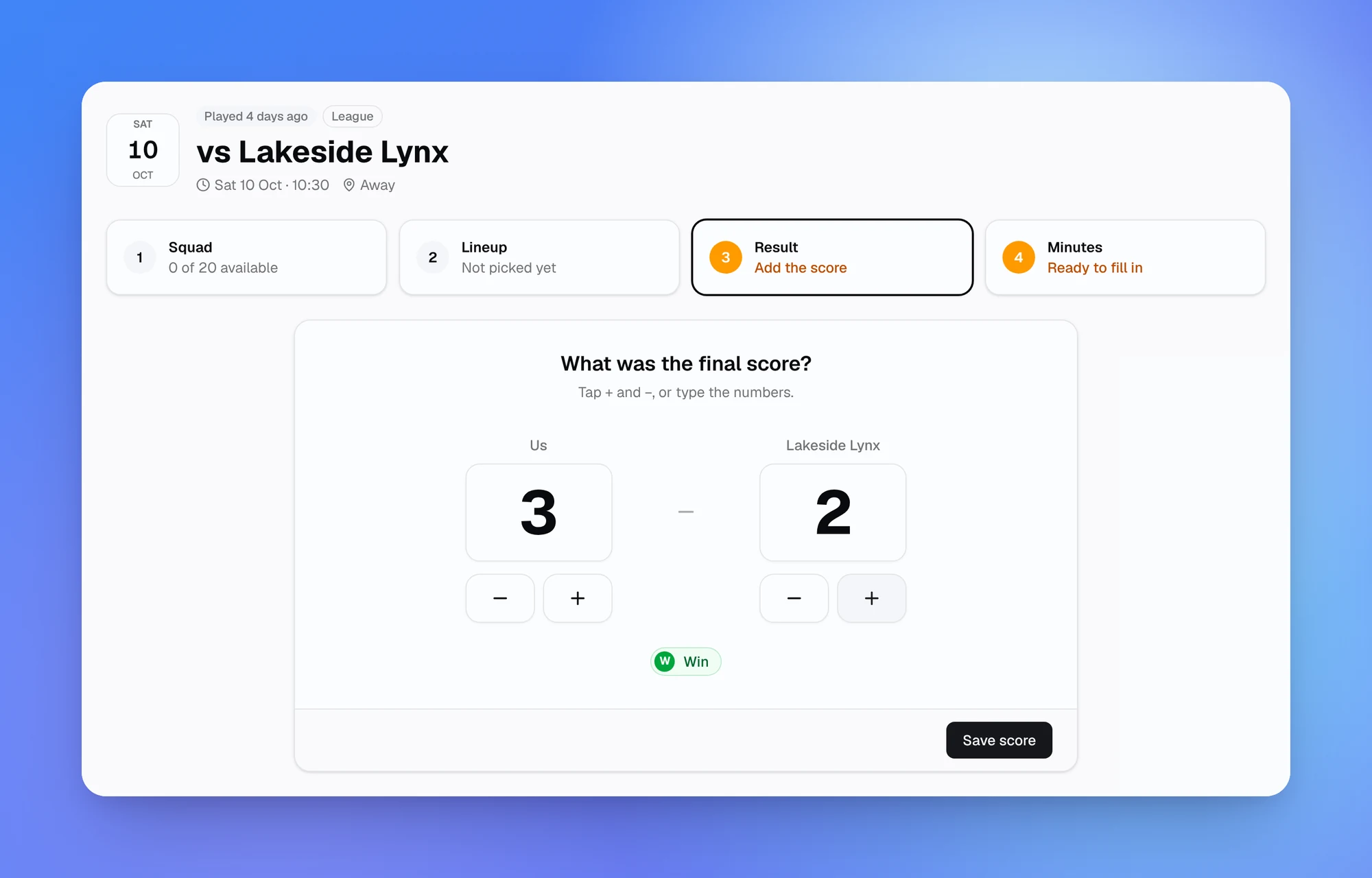
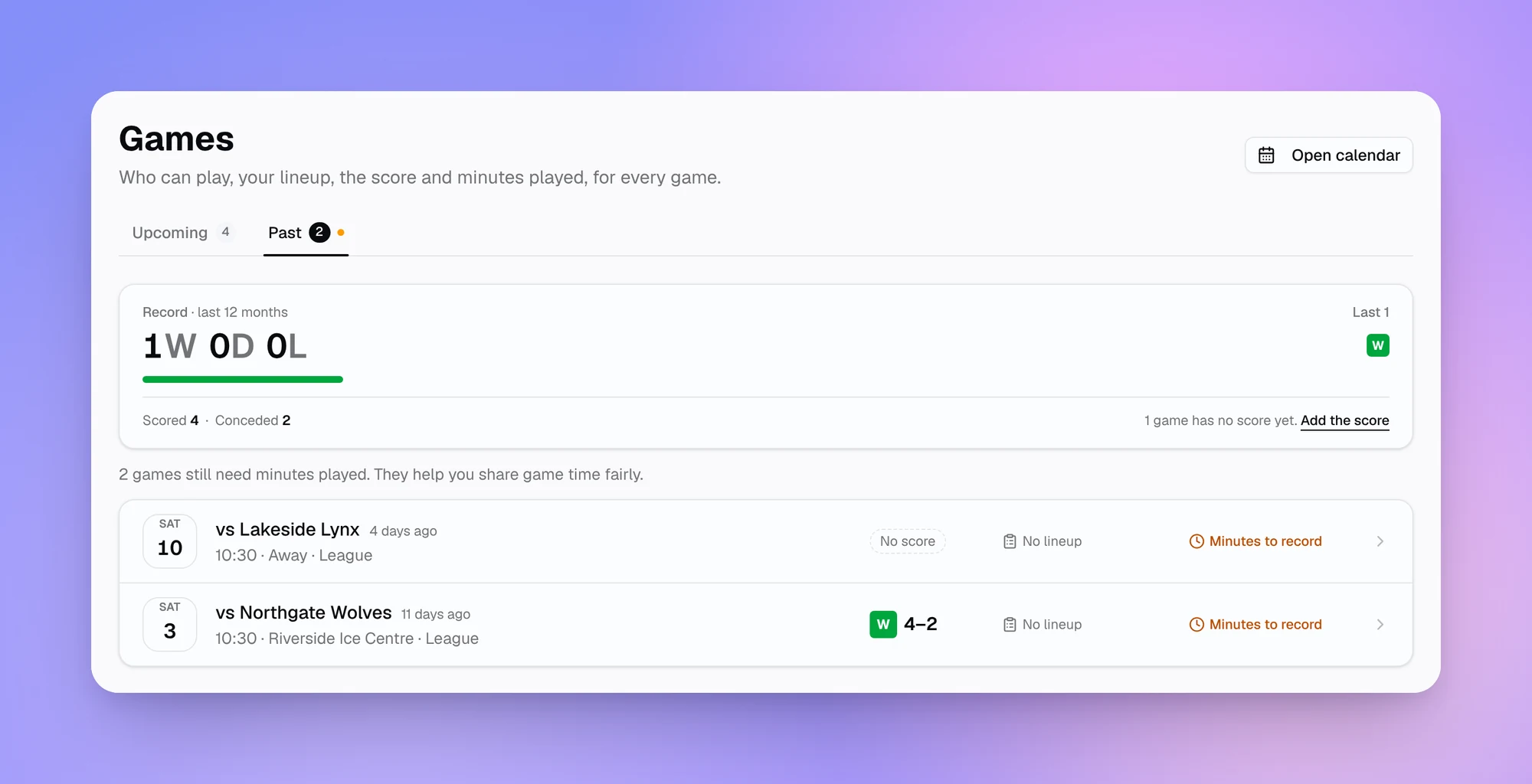
Games now have their own page, split into upcoming and past. Each game takes you through four steps: who's available, the lineup, the result and minutes played. Save the final score and it shows on the game and in your calendar. The Past tab keeps your record for the last 12 months.
Squad and score are on every plan, and lineups and minutes are on Pro and Club. To find Games, press Ctrl+K (⌘K on a Mac) and type "games".
Bring your whole squad in at once
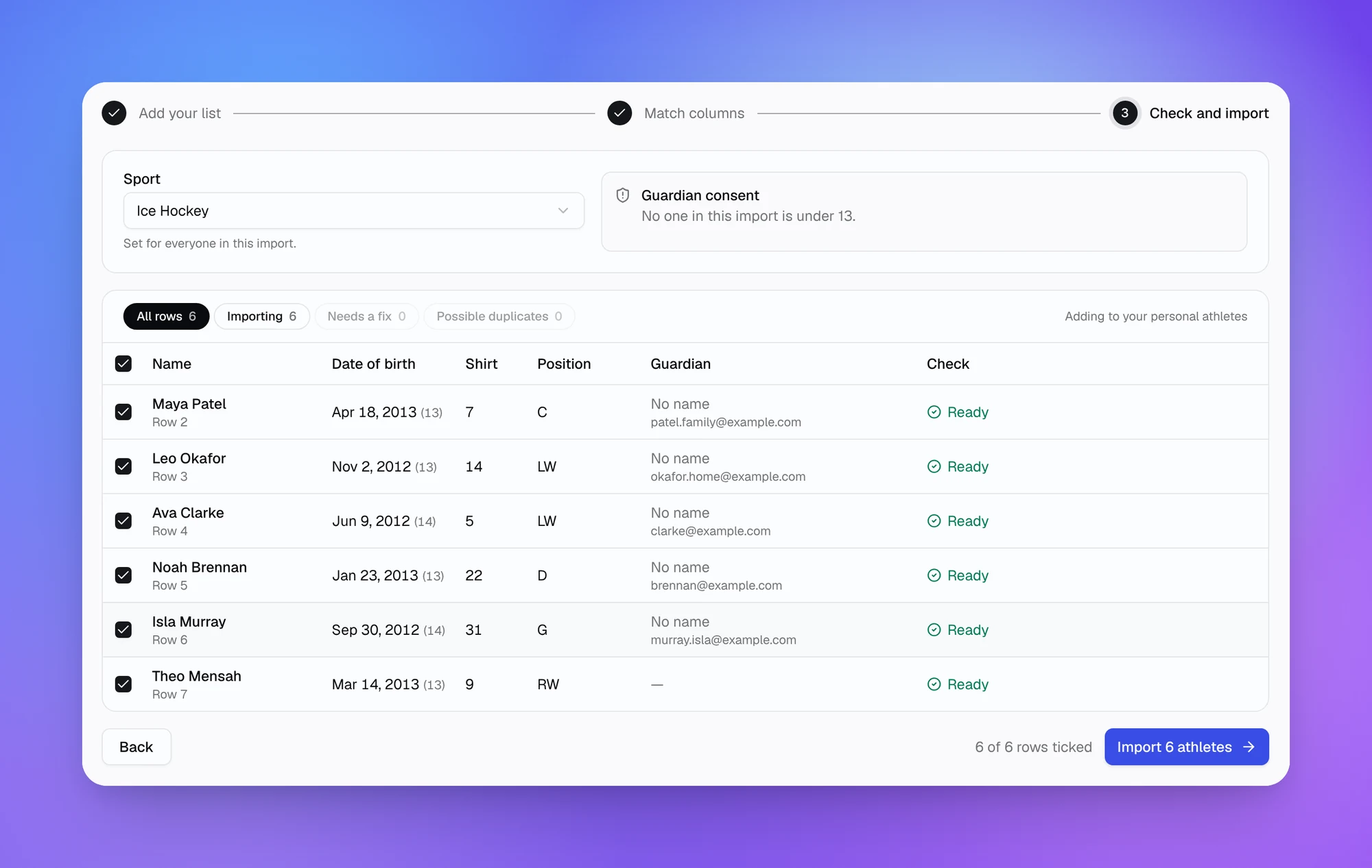
You can now import players from a CSV file or paste them straight from a spreadsheet. Planner.coach matches your columns and you check every row before anything is saved. Possible duplicates are flagged, and for players under 13 you can email the guardian a consent request as part of the import.
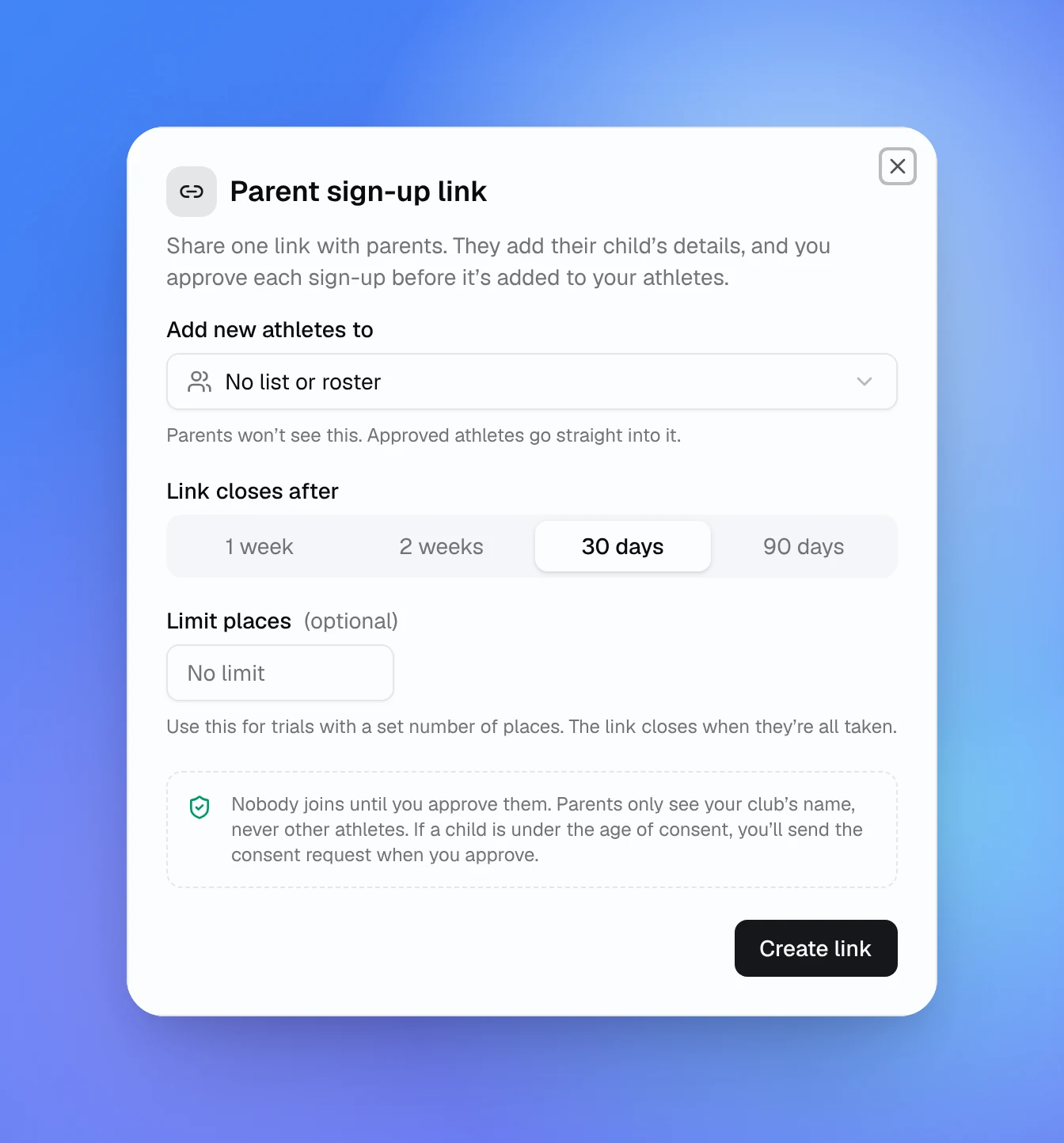
You can also let parents do the typing with a parent sign-up link. They fill in their child's details and each sign-up waits for your approval. Parents only see your club's name, never other athletes. You choose how long the link stays open and, for trials, how many places it has. Both work on every plan, up to your plan's athlete limit.
A more useful AI Coach
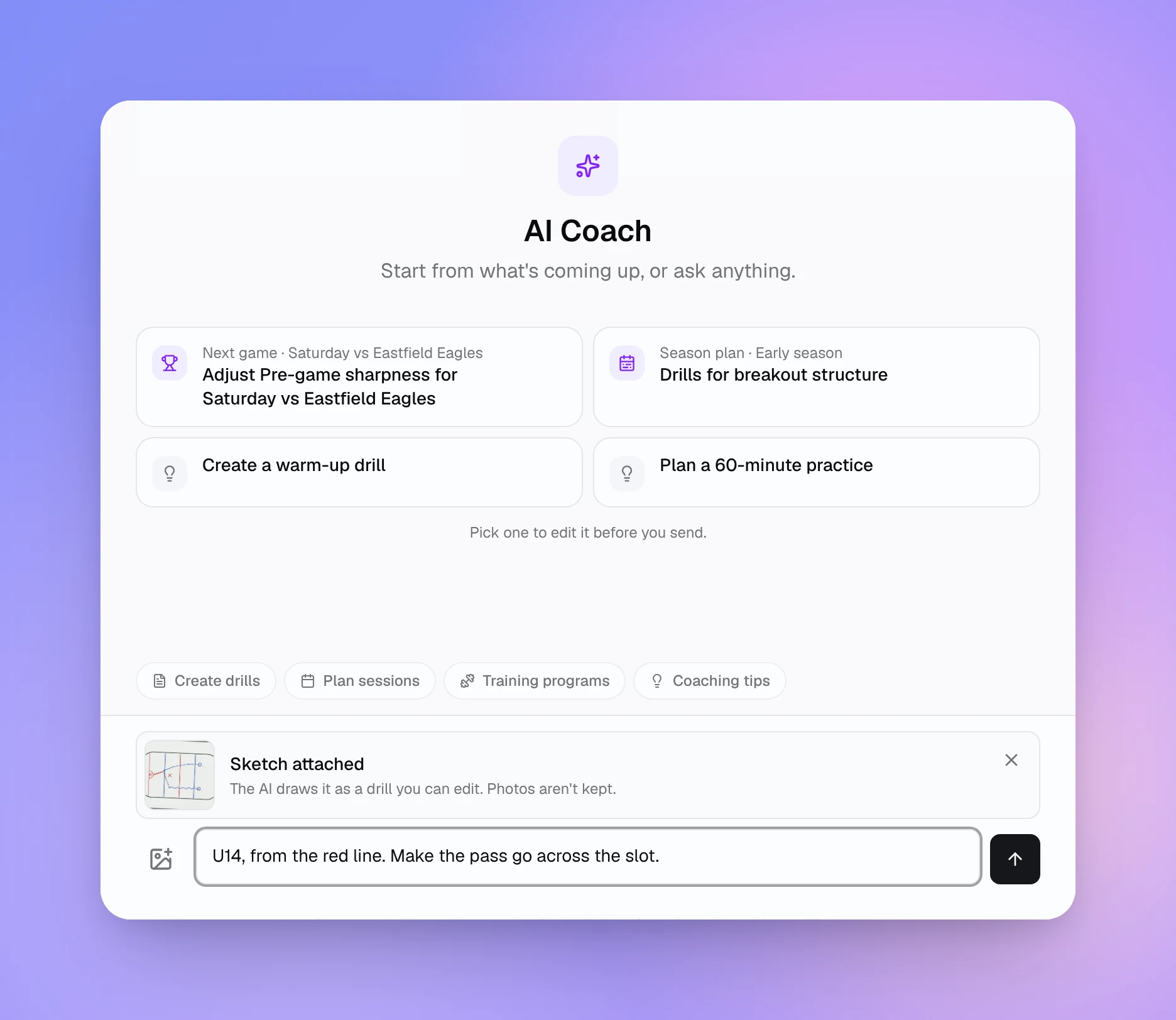
Take a photo of a drill you've drawn on a whiteboard or paper and send it to the AI Coach. It draws it as a diagram you can edit before you save it. On a phone, the photo button lets you take the picture there and then. Photos aren't kept, and a photo message uses credits like any other.
Before it shows you a drill, the AI now looks at a picture of what it drew and fixes problems it spots, such as overlapping players. On a drill you already have, Improve with AI in the editor toolbar asks it to tidy the diagram (on desktop for now).
A new chat suggests where to start based on what's coming up, such as adjusting your next session for Saturday's game. You can also type your next message while the AI Coach is still replying, and it sends when the reply finishes.
Two changes to credits: if the AI Coach hits an error or can't answer, you get all the credits for that message back. If you stop a reply partway, you're only charged for what it used.
Finding your way around
The sidebar is shorter and grouped under Plan, People and Club. Activities, Athletes and Safeguarding each open as one page with tabs, so your own drills sit next to the Library and Community. Search finds sessions and drills by title or tag, and Settings is split into sections that save as you type.
Fixes
We also fixed a long list of smaller things. Moved, resized and rotated items no longer jump back after you save, and undo works straight after a save. A new drill keeps its drawing when you change its surface, and This week shows the right dates if you coach outside the UK.
Try it
Everything above is live now. Open a drill and press Play, or start today's session in Run mode from This week. If you're new to Planner.coach, you can get started for free.
See It in Action
Sign up for free and start using the latest features today. No credit card required.
More from the blog
Connect Claude or ChatGPT to Your Coaching Data with the MCP Connector
Planner.coach now supports the Model Context Protocol. Connect Claude, ChatGPT, or Copilot to your sessions, athletes, and calendar — on every plan.
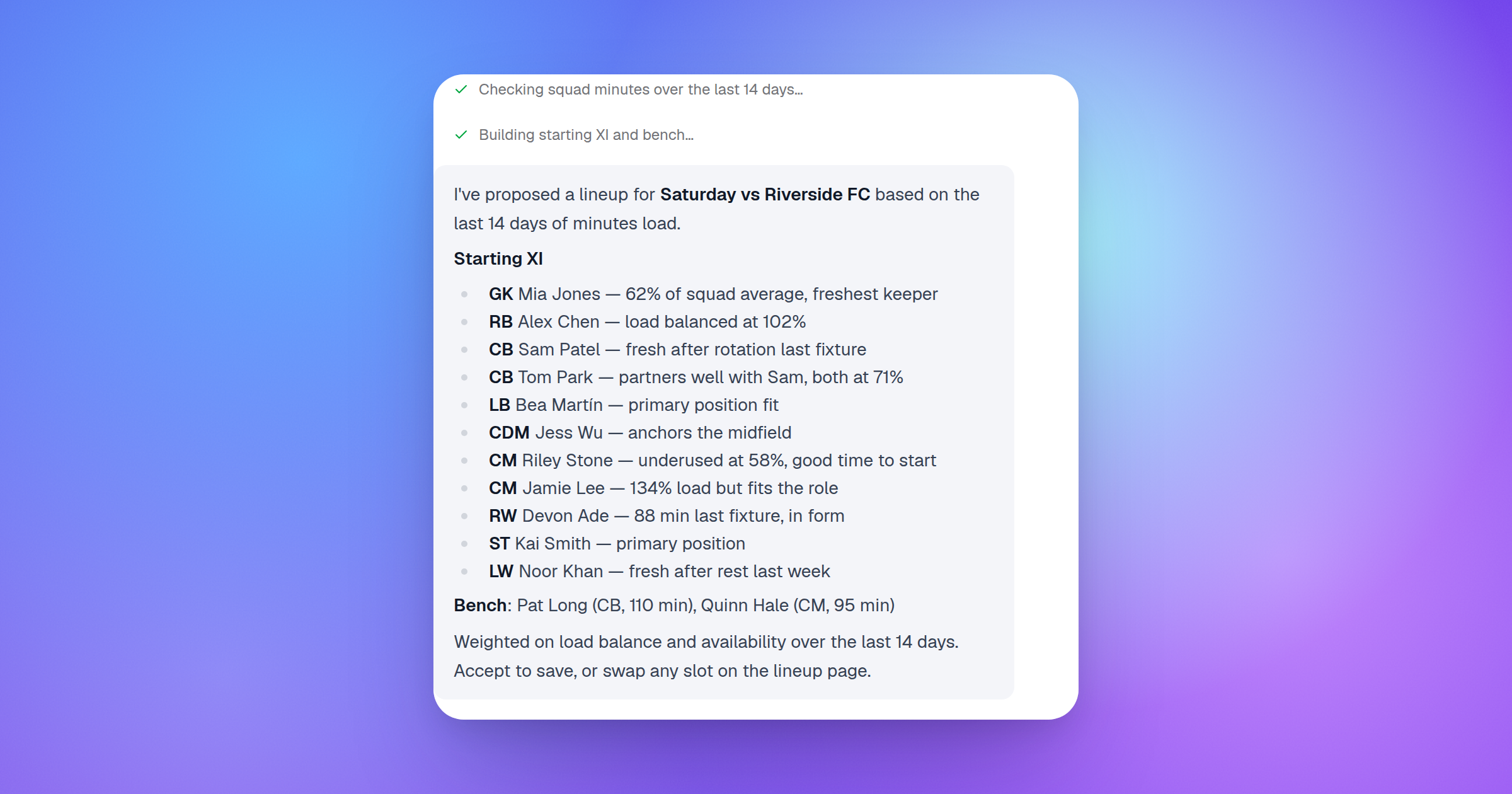
Introducing AI-Powered Lineup Builder: Smarter Match-Day Planning
Build your starting lineup, manage ice time, and let AI propose balanced formations for soccer and hockey — in minutes, not hours.
How to Plan Practice Sessions with AI: A Coach's Guide
A practical guide to using AI to plan sessions, design drills, and track athlete progress — without the admin hours that usually come with it.